If you need a simple backup tool or a tool for enterprise-level Linux offers an assortment of solutions.
With Linux, you will find many backup tools, ranging from very simple to very complex. There are command line tools, graphical tools, server-based tools and combinations thereof. Some of these are extremely difficult and their usefulness is the subject of discussion. So where is a good middle ground? This, of course, depends on your intentions and your budget.
I suggest what might be the best tools for backing up Linux, which can be useful for desktop use and which to use the server side. They are all free and clear, but one that requires enterprise-class support.
1. LuckyBackup
LuckyBackup is an ideal tool for the Linux desktop. It 'easy to use, flexible, reliable and is one of the few graphic desktop tools making it easy scheduled backups. LuckyBackup is powerful. Lucky can handle full backups, snapshots, backups synchronized, inclusions / exclusions, local or remote backup, restore, simulation and more. If you are looking for an ideal tool for backing up Linux on desktops, LuckyBackup can be your best choice.
2. DejaDup
DejaDup is another simple and easy backup tool. Some users find it too simple, with its single window consisting of two large buttons that read "Restore" and "Back Up". But behind the two big buttons is a good list of amenities. DejaDup provides support for local and remote backups (even on Amazon S3, Rackspace Cloud Files and Ubuntu One), encryption, compression, incremental backups, scheduled backups and full integration with GNOME. In other words, its simplified interface is ideal for users who want a tool that functions and semza too many complications.
3. Acronis Linux
And 'so, one of the Mac for backup equipment, has an option for the Linux server. Acronis Backup and Recover (ABR) 11 for Linux is available and is pure power. A backup solution, complete, enterprise-class graphics and is available for those who need a powerful solution, with support also included. The cost for the license of ABR 11 ($ 850) is not just nonsense, but for those who want the reliability and robustness of its holding company, ABR 11 is the right tool for the job.
Tampilkan postingan dengan label Linux. Tampilkan semua postingan
Senin, 14 Desember 2015
Senin, 07 Desember 2015
Tools for the Terminal
1. cmus
cmus music player music player is a very powerful and equipped with nice amenities. It 'made with ncurses and this provides a text interface. cmus is richly endowed with many visual mode and the ability to report on Last.fm. Supports the commands you type and auto with the Tab key on how to use cmus A Guide is available here (in English). Homepage
2. Finch
Finch is available with Pidgin, the popular IM client. Finch offers the same features as Pidgin, offers just that through the terminal using ncurses. Supports IM protocols such as Yahoo, Google Talk, XMPP (Facebook), WLM (Windows Live Messenger) and others. Homepage
3. htop
htop is an interactive process viewer that uses ncurses. It allows scrolling to view the processes in place and can use color and graphics. A real gem for a Linux user. Homepage
4. irssi
A client IRC (Internet Relay Chat) with a very powerful ncurses based interface, implements the multi-server, can be expanded with Perl scripts, supports themes, DCC chat and all other amenities of the IRC server. Homepage
5. mc
Midnight Commander is the famous double-pane file manager for the Linux terminal, also based on ncurses and equipped with many amenities. Homepage
6. lynx
Lynx is a popular web browser for the terminal. Supports protocols such as HTTP, FTP or Gopher. Homepage
7. gzip
gzip is a command line tool to compress and decompress files. All files ending with a. Tar.gz is archived with tar and compressed with gzip. Homepage
8. bzip2
Similar to gzip, bzip2 is a data compressor that requires a lot of time to compress and decompress files, but provides a more efficient compression algorithm that produces smaller files. Homepage
9. aaxine
aaxine is a video player for console based multimedia player xine-lib , which uses ASCII characters for aoutput video. Ubuntu comes with the package xine-console . Homepage Big Buck Bunny
10. aview
The tool supports the display of images as ASCII art. Supports the following formats, which can be in the form of binary code or ASCII text: PNM, PGM, PBM, PPM . It also supports video formats like FLI and FLC. Homepage
11. mencoder
mencoder is a powerful encoder / decoder Video included in MPlayer and can convert between various video files. Homepage
12. ffmpeg
Using libavcodec, ffmpeg is another powerful tool for encoding / decoding, recording and stream video files. Homepage
13. convert
Included in the ImageMagick convert is a tool that can convert between image formats and can apply various effects to images or change some aspects, such as resizing, cropping, blurring, and more. convert is also used on web servers for image processing. Homepage
14. moc
moc (music on console) is another music player based on ncurses, to the terminal which plays formats such as Ogg Vorbis, FLAC, MP3, WAV or WMA. It also supports themes and research files. Homepage
cmus music player music player is a very powerful and equipped with nice amenities. It 'made with ncurses and this provides a text interface. cmus is richly endowed with many visual mode and the ability to report on Last.fm. Supports the commands you type and auto with the Tab key on how to use cmus A Guide is available here (in English). Homepage
2. Finch
Finch is available with Pidgin, the popular IM client. Finch offers the same features as Pidgin, offers just that through the terminal using ncurses. Supports IM protocols such as Yahoo, Google Talk, XMPP (Facebook), WLM (Windows Live Messenger) and others. Homepage
3. htop
htop is an interactive process viewer that uses ncurses. It allows scrolling to view the processes in place and can use color and graphics. A real gem for a Linux user. Homepage
4. irssi
A client IRC (Internet Relay Chat) with a very powerful ncurses based interface, implements the multi-server, can be expanded with Perl scripts, supports themes, DCC chat and all other amenities of the IRC server. Homepage
5. mc
Midnight Commander is the famous double-pane file manager for the Linux terminal, also based on ncurses and equipped with many amenities. Homepage
6. lynx
Lynx is a popular web browser for the terminal. Supports protocols such as HTTP, FTP or Gopher. Homepage
7. gzip
gzip is a command line tool to compress and decompress files. All files ending with a. Tar.gz is archived with tar and compressed with gzip. Homepage
8. bzip2
Similar to gzip, bzip2 is a data compressor that requires a lot of time to compress and decompress files, but provides a more efficient compression algorithm that produces smaller files. Homepage
9. aaxine
aaxine is a video player for console based multimedia player xine-lib , which uses ASCII characters for aoutput video. Ubuntu comes with the package xine-console . Homepage Big Buck Bunny
10. aview
The tool supports the display of images as ASCII art. Supports the following formats, which can be in the form of binary code or ASCII text: PNM, PGM, PBM, PPM . It also supports video formats like FLI and FLC. Homepage
11. mencoder
mencoder is a powerful encoder / decoder Video included in MPlayer and can convert between various video files. Homepage
12. ffmpeg
Using libavcodec, ffmpeg is another powerful tool for encoding / decoding, recording and stream video files. Homepage
13. convert
Included in the ImageMagick convert is a tool that can convert between image formats and can apply various effects to images or change some aspects, such as resizing, cropping, blurring, and more. convert is also used on web servers for image processing. Homepage
14. moc
moc (music on console) is another music player based on ncurses, to the terminal which plays formats such as Ogg Vorbis, FLAC, MP3, WAV or WMA. It also supports themes and research files. Homepage
Rabu, 02 Desember 2015
What is Linux?
Linux is an operating system created in 1991 by Linus Torvalds, a Finnish student then, and now maintained by a worldwide community of developers (including individual developers and companies like IBM, HP and Hitachi), coordinated by the same Linus, now a globally recognized developer.
Linux adopts a free license - which means, among other things, that all stakeholders can use it and redistribute it. Coupled with many other free software such as KDE, GNOME, Apache, Firefox and OpenOffice.org, Linux can form a modern, secure and stable for your desktop or server.
What's the best Linux distribution?
I have no doubt that this is the most common question in the absolute majority of forums and mailing lists for the Linux world.
It can come in many forms. Can be generic or specific, open or qualified. The novice user who wants to install Linux on your home computer asks what the best of the distributions that he saw on the newsstand. The system administrator or other architectures used to determine the best distribution for your server. The user who failed to run your hardware wants to know how best to work with other peripherals Winmodems and exotic design. And everyone keeps asking, what is the best distribution?
Unlike other frequently asked questions, this is one that tends to always be answered. This is because most distributions have true fan clubs, with users who resort to heated arguments attempt to demonstrate once again, and finally, that your Linux distribution of choice is the best of all, arguably the only sensible choice for installation , whether it be to run Oracle on a 4-processor server, a distance learning program on Pentium 133, a school or work environments in marketing for a multinational.
However, the responses of the various fan clubs clash, the user who asked the question is likely to end up with more questions than when you started. If the installation is on a server, there are three good arguments for using Debian, three more to Red Hat, plus 3 for Slackware, SUSE for many others, someone will say that the ideal is to create
its own distribution and respond to other others explaining why they should not use Debian, Red Hat, SUSE or Slackware.
Immediately thereafter, everyone will argue among themselves, looking for arguments on complex systems management packages, dependencies, who is older, who is more free, who gave birth to whom, and even about the personal life of each one of the maintainers of the distributions . Who has not watched this debate in a thread?
The question is old, and probably insoluble. While we have multiple distributions, have their fan clubs and users alike wondering what is the best. You can not avoid. However, experienced users tend to care for beginners in the disorientation caused by this type of confusion, offer advice and seek common, full of common sense and relatively neutral. Suggest to consult the websites of the distributions, consult users in your region (if you want to appeal to them for support, it is good to use the distribution that they know), or even try to find more than one that best suits you .
But is this the best answer? Probably yes, if we have to give a short answer. However, with time and space to prepare, can provide more complete, without indicating any specific distribution - as in general you can not specify a particular distribution without knowing the exact needs and capabilities of the applicant.
I have seen many attempts to answer this question, based on the most diverse arguments: one is the best for being the oldest, the other for having the largest number of packets, for taking another facility, another to be used by Linus Torvalds himself, other for being "more like a real Unix" (whatever that may mean), another for having a superior packaging system, another for not having automatic dependency management, another for being the most free, to have another the longer upgrade cycle, another by offering more documentation ...
As you can see, the criteria are multiple, even conflicting: one fans find that their distribution is the best by offering the largest automatic hardware recognition, and another think that theirs is the best of all because has no automatic recognition, leaving everything in the hands of the system administrator.
There are also some folk classifications. They say that the distribution would be better for X desktop, another is the queen of the servers, the third supports more hardware ... While many of them have merit in specific areas, it is not possible to say in a general way that some of them isolated and is the undisputed leader in these categories.
But I'm in my eighth year of participation in lists and forums for Linux, and I've had my share of infinite into that discussion. Over time, I developed a standardized response (and that does not mention any specific distribution) to offer help to those who ask me to select a distribution, and now I will share it with you. Use, adapt, copy, modify, or simply ignore it and continue doing as you already did. Free software is well ;-)
Linux adopts a free license - which means, among other things, that all stakeholders can use it and redistribute it. Coupled with many other free software such as KDE, GNOME, Apache, Firefox and OpenOffice.org, Linux can form a modern, secure and stable for your desktop or server.
What's the best Linux distribution?
I have no doubt that this is the most common question in the absolute majority of forums and mailing lists for the Linux world.
It can come in many forms. Can be generic or specific, open or qualified. The novice user who wants to install Linux on your home computer asks what the best of the distributions that he saw on the newsstand. The system administrator or other architectures used to determine the best distribution for your server. The user who failed to run your hardware wants to know how best to work with other peripherals Winmodems and exotic design. And everyone keeps asking, what is the best distribution?
Unlike other frequently asked questions, this is one that tends to always be answered. This is because most distributions have true fan clubs, with users who resort to heated arguments attempt to demonstrate once again, and finally, that your Linux distribution of choice is the best of all, arguably the only sensible choice for installation , whether it be to run Oracle on a 4-processor server, a distance learning program on Pentium 133, a school or work environments in marketing for a multinational.
However, the responses of the various fan clubs clash, the user who asked the question is likely to end up with more questions than when you started. If the installation is on a server, there are three good arguments for using Debian, three more to Red Hat, plus 3 for Slackware, SUSE for many others, someone will say that the ideal is to create
its own distribution and respond to other others explaining why they should not use Debian, Red Hat, SUSE or Slackware.
Immediately thereafter, everyone will argue among themselves, looking for arguments on complex systems management packages, dependencies, who is older, who is more free, who gave birth to whom, and even about the personal life of each one of the maintainers of the distributions . Who has not watched this debate in a thread?
The question is old, and probably insoluble. While we have multiple distributions, have their fan clubs and users alike wondering what is the best. You can not avoid. However, experienced users tend to care for beginners in the disorientation caused by this type of confusion, offer advice and seek common, full of common sense and relatively neutral. Suggest to consult the websites of the distributions, consult users in your region (if you want to appeal to them for support, it is good to use the distribution that they know), or even try to find more than one that best suits you .
But is this the best answer? Probably yes, if we have to give a short answer. However, with time and space to prepare, can provide more complete, without indicating any specific distribution - as in general you can not specify a particular distribution without knowing the exact needs and capabilities of the applicant.
I have seen many attempts to answer this question, based on the most diverse arguments: one is the best for being the oldest, the other for having the largest number of packets, for taking another facility, another to be used by Linus Torvalds himself, other for being "more like a real Unix" (whatever that may mean), another for having a superior packaging system, another for not having automatic dependency management, another for being the most free, to have another the longer upgrade cycle, another by offering more documentation ...
As you can see, the criteria are multiple, even conflicting: one fans find that their distribution is the best by offering the largest automatic hardware recognition, and another think that theirs is the best of all because has no automatic recognition, leaving everything in the hands of the system administrator.
There are also some folk classifications. They say that the distribution would be better for X desktop, another is the queen of the servers, the third supports more hardware ... While many of them have merit in specific areas, it is not possible to say in a general way that some of them isolated and is the undisputed leader in these categories.
But I'm in my eighth year of participation in lists and forums for Linux, and I've had my share of infinite into that discussion. Over time, I developed a standardized response (and that does not mention any specific distribution) to offer help to those who ask me to select a distribution, and now I will share it with you. Use, adapt, copy, modify, or simply ignore it and continue doing as you already did. Free software is well ;-)
Linux: A list of common commands (and usually charged on LPI)
Below is a short list of commands used Unix-like systems. To information about each one of them you can see the corresponding man page on your system or visist sites like tldm or tab focus.
A little note is that most of these commands are charged on the LPI exams. So much attention to the use and syntax of each.
bg: leaves a process running in the background.
chattr: change attributes of files and directories. It is not related to access permission.
chfn: change the output of the finger.
chkconfing: configure automatic startup of daemons.
clear: clears the screen.
cmp: comparison between two binary files.
cut: snippet shows particular row / column a file.
date: view / modify the system date and time.
depmod: check the dependence of determiando módufo.
df: space occupied / available storage devices mounted.
diff: comparison between two text files.
saying: lookup tool for servers DNS.
dirname: get the directory name.
dmesg: displays messages from system startup.
dnsdomainname: Shows the domain name system.
du: shows floor space within the current directory.
echo: displays messages.
edquota: edit settings disk quota.
expand, then replaces TABs by single spaces.
find: do a search on the system.
finger: details about the system users.
fg: bacvkground takes a process and leaves in the foreground.
fmt: Sa'd to format the certain number of characters per line.
free: shows memory space.
grep: find a sequence of characters.
groupadd: Adds a group in the system.
groupdel: remove a system group.
groups: shows the name of the registered groups.
halt: shortcut to turn off the system immediately.
head: displays the initial lines of a file.
hexdump: shown binary files in hex.
Host: tool for DNS lookup.
hostname: display / change the computer name.
id: returns information about the user.
insmod: load kernel modules without checking dependencies.
join: concatenates file-based fields.
kmod: load modules automatically by demand.
last: shows the history of logins and logouts into the system.
lastlog: shows the last login to the system .
less: paging files or standard input.
ldconfig: creates necessary links and cache the libraries found in the system.
logname: Shows the login.
ln: create links in the system.
logger: allows scripts to add entries to the / var / log.
lpc: against the print queue.
lpq: Shows the status of the print queue.
lpr: sends a file to the print queue.
lprm: removes a job from the print queue.
lsattr: displays attributes of files and directories: No is related to access permission.
lsmod: lists the modules loaded by the kernel.
mesg: allows communication through talk.
modconf: interface to facilitate the loading of modules.
modinfo: displays information about a particular module, including configuration options.
modprobe: load checking kernel modules dependencies.
more: paging files or standard input.
netstat: shows connections, routing statistics and so on.
newgroup: changes the identification of a particular user group.
nl: numbers the lines of a file. Equivalent cat-b.
nohup: start a program and play for background if the user logs out.
passwd: change the password of a user.
paste: concatenate files side by side.
ping: sends ICMP packets to another network host.
pwd: shows the current directory.
quota: monitoring and control of quotas.
quotacheck: usage statistics of disk quotas.
reboot: shortcut to restart the system immediately.
repquota: generating reports about quotas.
rmmod: remove modules loaded by the kernel.
runlevel : shows the previous and current runlevel.
seq: print a sequence of numbers.
shutdown: shutdown and restart the computer immediately or at all program.
sort: organizing the contents of files or standard input to the program.
su: allows a "Rapid users. "
sg: allows a "fast" group.
sync: writes data into ram instead of disk cache, leaving it to do so in the event of system downtime.
tail: linahs shows the end of a file. inverse of the head command.
talk: start a conversation with another user logged.
tee: read an entry and redirects to one or more output.
telinit: modifies the current system runlevel.
time: shows the time spent for execution of a process system.
touch: creates empty files and change the date / time of existing files.
tr: modify or delete characters.
uname: Returns the system name and version.
unexpand: then replaces TABs by single spaces.
uniq: displays a text file by deleting lines repeated sequences.
uptime : shows how long the system is turned on.
useradd: Adds a user on the system.
userdel: Removes a user's system.
users: shows the name of the registered users.
vigr: an open section of the appropriate vi to edit the file / etc / group.
w: shows who is logged into the system and what they are doing.
wall: sends a message to all users logged into the system.
wc: count of words, bytes and lines of a file or standard input.
Which: shows the location a binary file that is in the PATH system.
who: shows logged into the system in question.
whoami: shows your user.
A little note is that most of these commands are charged on the LPI exams. So much attention to the use and syntax of each.
bg: leaves a process running in the background.
chattr: change attributes of files and directories. It is not related to access permission.
chfn: change the output of the finger.
chkconfing: configure automatic startup of daemons.
clear: clears the screen.
cmp: comparison between two binary files.
cut: snippet shows particular row / column a file.
date: view / modify the system date and time.
depmod: check the dependence of determiando módufo.
df: space occupied / available storage devices mounted.
diff: comparison between two text files.
saying: lookup tool for servers DNS.
dirname: get the directory name.
dmesg: displays messages from system startup.
dnsdomainname: Shows the domain name system.
du: shows floor space within the current directory.
echo: displays messages.
edquota: edit settings disk quota.
expand, then replaces TABs by single spaces.
find: do a search on the system.
finger: details about the system users.
fg: bacvkground takes a process and leaves in the foreground.
fmt: Sa'd to format the certain number of characters per line.
free: shows memory space.
grep: find a sequence of characters.
groupadd: Adds a group in the system.
groupdel: remove a system group.
groups: shows the name of the registered groups.
halt: shortcut to turn off the system immediately.
head: displays the initial lines of a file.
hexdump: shown binary files in hex.
Host: tool for DNS lookup.
hostname: display / change the computer name.
id: returns information about the user.
insmod: load kernel modules without checking dependencies.
join: concatenates file-based fields.
kmod: load modules automatically by demand.
last: shows the history of logins and logouts into the system.
lastlog: shows the last login to the system .
less: paging files or standard input.
ldconfig: creates necessary links and cache the libraries found in the system.
logname: Shows the login.
ln: create links in the system.
logger: allows scripts to add entries to the / var / log.
lpc: against the print queue.
lpq: Shows the status of the print queue.
lpr: sends a file to the print queue.
lprm: removes a job from the print queue.
lsattr: displays attributes of files and directories: No is related to access permission.
lsmod: lists the modules loaded by the kernel.
mesg: allows communication through talk.
modconf: interface to facilitate the loading of modules.
modinfo: displays information about a particular module, including configuration options.
modprobe: load checking kernel modules dependencies.
more: paging files or standard input.
netstat: shows connections, routing statistics and so on.
newgroup: changes the identification of a particular user group.
nl: numbers the lines of a file. Equivalent cat-b.
nohup: start a program and play for background if the user logs out.
passwd: change the password of a user.
paste: concatenate files side by side.
ping: sends ICMP packets to another network host.
pwd: shows the current directory.
quota: monitoring and control of quotas.
quotacheck: usage statistics of disk quotas.
reboot: shortcut to restart the system immediately.
repquota: generating reports about quotas.
rmmod: remove modules loaded by the kernel.
runlevel : shows the previous and current runlevel.
seq: print a sequence of numbers.
shutdown: shutdown and restart the computer immediately or at all program.
sort: organizing the contents of files or standard input to the program.
su: allows a "Rapid users. "
sg: allows a "fast" group.
sync: writes data into ram instead of disk cache, leaving it to do so in the event of system downtime.
tail: linahs shows the end of a file. inverse of the head command.
talk: start a conversation with another user logged.
tee: read an entry and redirects to one or more output.
telinit: modifies the current system runlevel.
time: shows the time spent for execution of a process system.
touch: creates empty files and change the date / time of existing files.
tr: modify or delete characters.
uname: Returns the system name and version.
unexpand: then replaces TABs by single spaces.
uniq: displays a text file by deleting lines repeated sequences.
uptime : shows how long the system is turned on.
useradd: Adds a user on the system.
userdel: Removes a user's system.
users: shows the name of the registered users.
vigr: an open section of the appropriate vi to edit the file / etc / group.
w: shows who is logged into the system and what they are doing.
wall: sends a message to all users logged into the system.
wc: count of words, bytes and lines of a file or standard input.
Which: shows the location a binary file that is in the PATH system.
who: shows logged into the system in question.
whoami: shows your user.
Selasa, 01 Desember 2015
Understanding the Berkeley automounter suite of utilities (BSD AMD)
The subject of using NFS file sharing has been discussed here on my blog, and can be easily found at various sites on the Internet. Today I want to comment on a utility's native BSD called BSD or BSD automounter Suite AMD that is used to mount NFS shares on demand.
How does it work? Suppose you have Server A, whose IP is 192.168.0.1 and that is sharing the directory document you want to mount on the desktop. In normal operation you should mount the share using the mount command or fstab configuring your machine for this setup was automatic. This works well, but becomes a permanent connection between host and server that can often be idle, causing waste of processing.
BSD AMD works as follows: set up a file in / etc calling amd.conf . This file has a structure similar to the smb.conf, and it pointed out a directory that will be monitored by AMD, in our example / servers . Also set up a map file, for example amd.map which will include a map of access to servers, it is a command line consisting of simple variables, such as the base directory on the machine, to a variable with the name of a server and a variable to a share. In this map we will not put any reference to one of the servers, we will only variables that will be filled by the automounter later.
With this service we configured and started a ls / servers / A / documents we return ... oops, all sharing the files on the server A. If I give a ls / servers / A this returns me, hey, all shares on that server as if they were sub-folders. Now, if I give an ls / servers / B / financial , assuming I have a server named B with a share of the financier there, he returns all files that share this server. Now if I have no server called C and do a ls / server / C / documents he did not return anything. Got it?
Basically what the automounter daemon does is to look within a directory and a mask / directory / server / share, it does auto mount them. How cool is that? The only detail to note here is that if the reference is made based on the name, it is necessary that these are explicit in the / etc / hosts.
How does it work? Suppose you have Server A, whose IP is 192.168.0.1 and that is sharing the directory document you want to mount on the desktop. In normal operation you should mount the share using the mount command or fstab configuring your machine for this setup was automatic. This works well, but becomes a permanent connection between host and server that can often be idle, causing waste of processing.
BSD AMD works as follows: set up a file in / etc calling amd.conf . This file has a structure similar to the smb.conf, and it pointed out a directory that will be monitored by AMD, in our example / servers . Also set up a map file, for example amd.map which will include a map of access to servers, it is a command line consisting of simple variables, such as the base directory on the machine, to a variable with the name of a server and a variable to a share. In this map we will not put any reference to one of the servers, we will only variables that will be filled by the automounter later.
With this service we configured and started a ls / servers / A / documents we return ... oops, all sharing the files on the server A. If I give a ls / servers / A this returns me, hey, all shares on that server as if they were sub-folders. Now, if I give an ls / servers / B / financial , assuming I have a server named B with a share of the financier there, he returns all files that share this server. Now if I have no server called C and do a ls / server / C / documents he did not return anything. Got it?
Basically what the automounter daemon does is to look within a directory and a mask / directory / server / share, it does auto mount them. How cool is that? The only detail to note here is that if the reference is made based on the name, it is necessary that these are explicit in the / etc / hosts.
Senin, 23 November 2015
Windows VS Linux
Flavors
Both Windows and Linux come in many flavors. All the flavors of Windows come from Microsoft, the various distributions of Linux come from different companies (i.e. Linspire, Red Hat, SuSE, Ubuntu, Xandros, Knoppix, Slackware, Lycoris, etc. ).
Windows has two main lines. The older flavors are referred to as "Win9x" and consist of Windows 95, 98, 98SE and Me. The newer flavors are referred to as "NT class" and consist of Windows NT3, NT4, 2000, XP and Vista. Going back in time, Windows 3.x preceded Windows 95 by a few years. And before that, there were earlier versons of Windows, but they were not popular. Microsoft no longer supports Windows NT3, NT4, all the 9x versions and of course anything older. Support for Windows 2000 is partial (as of April 2007).
The flavors of Linux are referred to as distributions (often shortened to "distros"). All the Linux distributions released around the same time frame will use the same kernel (the guts of the Operating System). They differ in the add-on software provided, GUI, install process, price, documentation and technical support. Both Linux and Windows come in desktop and server editions.
There may be too many distributions of Linux, it's possible that this is hurting Linux in the marketplace. It could be that the lack of a Linux distro from a major computer company is also hurting it in the marketplace. IBM is a big Linux backer but does not have their own branded distribution. Currently there seem to be many nice things said about the Ubuntu distribution.
Linux is customizable in a way that Windows is not. For one, the user interface, while similar in concept, varies in detail from distribution to distribution. For example, the task bar may default to being on the top or the bottom. Also, there are many special purpose versions of Linux above and beyond the full blown distributions described above. For example, NASLite is a version of Linux that runs off a single floppy disk (since revised to also boot from a CD) and converts an old computer into a file server. This ultra small edition of Linux is capable of networking, file sharing and being a web server.
Graphical User Interface
Both Linux and Windows provide a GUI and a command line interface. The Windows GUI has changed from Windows 3.1 to Windows 95 (drastically) to Windows 2000 (slightly) to Windows XP (fairly large) and is slated to change again with the next version of Windows, the one that will replace XP. Windows XP has a themes feature that offers some customization of the look and feel of the GUI.
Linux typically provides two GUIs, KDE and Gnome. See a screen shot of Lycoris and Lindows in action from the Wal-Mart web site. The lynucs.org web site has examples of many substantially different Linux GUIs. Of the major Linux distributions, Lindows has made their user interface look more like Windows than the others. Here is a screen shot of Linux made to look like Windows XP. Then too, there is XPde for Linux which really makes Linux look like Windows. Quoting their web site "It's a desktop environment (XPde) and a window manager (XPwm) for Linux. It tries to make easier for Windows XP users to use a Linux box."
Mark Minasi makes the point (Windows and .NET magazine, March 2000) that the Linux GUI is optional while the Windows GUI is an integral component of the OS. He says that speed, efficiency and reliability are all increased by running a server instance of Linux without a GUI, something that server versions of Windows can not do. In the same article he points out that the detached nature of the Linux GUI makes remote control and remote administration of a Linux computer simpler and more natural than a Windows computer.
Is the flexibility of the Linux GUI a good thing? Yes and No. While advanced users can customize things to their liking, it makes things harder on new users for whom every Linux computer they encounter may look and act differently.
Text Mode Interface
This is also known as a command interpreter. Windows users sometimes call it a DOS prompt. Linux users refer to it as a shell. Each version of Windows has a single command interpreter, but the different flavors of Windows have different interpreters. In general, the command interpreters in the Windows 9x series are very similar to each other and the NT class versions of Windows (NT, 2000, XP) also have similar command interpreters. There are however differences between a Windows 9x command interpreter and one in an NT class flavor of Windows. Linux, like all versions of Unix, supports multiple command interpreters, but it usually uses one called BASH (Bourne Again Shell). Others are the Korn shell, the Bourne shell, ash and the C shell (pun, no doubt, intended).
Installing the Operating System
There are three ways to install Windows XP: a clean install, an upgrade install and a repair install. Then, there is a "recovery" install, which is not an install in the true sense of the word but rather the restoration of a disk image backup.
A clean install refers to starting with nothing (either an entirely empty hard disk or just an empty partition or just unallocated space on the hard disk) and ending up with just Windows.
An upgrade install refers to starting with an older version of Windows and ending up with a newer version. Existing data files and applications should not be affected by the upgrade to the newer edition of Windows.
A repair install refers to installing the same version of Windows on top of itself. This is used to fix a broken copy of Windows and existing data files and applications are not affected.
A "recovery" is typically used to restore a computer to its factory fresh state. All data files are wiped out. All applications installed since the computer was new, are wiped out. All upgrades to Windows itself (patches, service packs) are lost. Applications pre-installed by the computer manufacturer are restored. Originally this was done from CDs, then DVDs. Now it is normally done from a hidden area of the hard disk.
Then there is Windows Vista where much has changed. I'm not familiar with the install options for Vista. Andy Pennell, a Microsoft employee, wrote about his problems installing Vista on June 21, 2007. He is very familiar with Windows and installed Vista onto a second internal hard disk, leaving the existing hard disk with Windows XP unchanged. At least that was the plan. See Installing Vista: My Personal Hell. Installing Vista on a computer with an existing copy of Windows, with the intention of dual-booting, is much trickier than it used to be with earlier versions of Windows.
There is a huge variation in the Linux installation procedure. Different distributions of Linux have their own installation programs (which may even change with different versions of the same distribution). Installing Linux on a computer without an existing operating system is much easier than installing it on a machine with an existing OS that you want to preserve.
I'm sure that installing Linux is getting easier all the time. While I haven't done it all that often, I have seen it become easier over time. Is it easy enough for you?
Ed Bott blogged about his experience installing Linux on July 31, 2006. Linux, XP, and my old PC
In March 2007, he tried again with mixed success. Why does Linux hate me?
A picture is worth a thousand words so this July 2007 picture show at ZDnet on Installing OpenSUSE 10.2 is instructive
In June 2007, I installed Ubuntu v7.4 on an IBM NetVista machine that was about four years old. The system would only run at 640x480 and things went downhill from there. The problem may have been due to a KVM switch that prevented the system from querying the monitor. However, instead of asking me or telling me anything about a failure to detect the monitor, it just ran at 640x480 with no GUI based facility to increase the resolution.
When installing Linux on a machine where you don't need to preserve the existing operating system, there is likely to be an option to clobber the existing OS as part of the Linux installation procedure. Or, you can use a program to totally wipe everything off the hard disk before installing Linux. The free Darik's Boot and Nuke is fairly famous for this. Better yet, the hard disk vendor should have a free utility that not only wipes the hard disk but also can run diagnostics on the disk.
You can also buy a new computer without any operating system. A low end Dell server, the PowerEdge 840 sold for $600 in June 2007. You can buy an HP ProLiant server starting at $500 that is certified to run six Linux distributions. IBM is big on Linux, quoting their web site: "The entire IBM Systems product line is Linux enabled." They sell computers both with no operating system and with Linux pre-installed. Nothing there is cheap however. Wal-Mart used to sell Microtel machines without an OS, but no more.
Installing Linux for dual booting, that is, keeping the existing operating system in tact, is probably best left to techies. It is all too easy to lose the pre-existing OS. You need to be familiar with hard disk partitions and some Linux terminology. With Red Hat Linux 8, the booklet on how to install the OS was over a hundred pages.
In his Linux book, Mark Minasi said that installing Linux on a desktop computer was more likely to be successful than on a laptop computer.
Application Software
There is more application software available for Windows. Then again, there may be sufficient Linux software for your needs.
Obtaining application software: If you buy a copy of Windows on a CD-ROM, you get no application software with it. If you buy a copy of Linux on a CD-ROM (or two or three) it typically comes with gobs of free application software. Likewise, Linux ISO downloads usually include lots of application software. The exception are Linux distributions that are small on purpose such as Damn Small Linux or Pen Drive Linux.
A new computer with Windows pre-installed normally comes additional application software, exactly what to include is up to the PC vendor. On one extreme, I have seen a new Sharp laptop machine that came with no software other than Windows itself. This is rare. In contrast, Sony VAIOs, for example, are more mainstream and come with a lot of software. However, there are two problems with the pre-installed application software on Windows computers.
First, much of it is junk. So much, that a new term "crapware" is being used to describe it. The PC vendors make money by installing this software that many people consider worse than useless. In fact, the first thing many techies do is un-install this software, someone even came out with a PC de-crapifier program to automate the un-installs. Windows computers sold to businesses tend to have less undesirable application software pre-installed compared to computers sold to consumers. I have never heard of anyone complaining about the software that comes pre-installed in the normal, popular versions of Linux.
Second, important software is often missing or old. For example, the Adobe Acrobat reader, may not pre-installed by the PC vendor. In February 2008, I blogged about a new Lenovo computer that came with terribly old versions of application software.
On the Linux side, to get a feel for the application software that comes with Ubuntu version 8.04 see Adventures with open source apps on Linux - Part 1 by Adrian Kingsley-Hughes from May 23rd, 2008.
Application software installation: The installation of applications under Windows, while not standardized, is generally consistent and generally pretty easy. Installing software under Linux varies with each distribution and has not been nearly as simple, easy or obvious as Windows. A couple articles from 2004 griped about how hard it was to install software in Liunx: The May 20, 2004 issue of the Langa list newsletter and a July 4, 2004 review of Linux in the Washington Post (Linux, Still an Awkward Alternative) where Rob Pegoraro called application software installation "Linux's biggest embarrassment".
That said, current Linux distributions have an application somewhat akin to Windows update that can be used to install software. I don't have much experience doing this. However, in April 2008 I used one of the new $200 Walmart Linux gOS machines and found the application for installing software very confusing, and it failed every time I tried to install something.
Both Windows and Linux come in many flavors. All the flavors of Windows come from Microsoft, the various distributions of Linux come from different companies (i.e. Linspire, Red Hat, SuSE, Ubuntu, Xandros, Knoppix, Slackware, Lycoris, etc. ).
Windows has two main lines. The older flavors are referred to as "Win9x" and consist of Windows 95, 98, 98SE and Me. The newer flavors are referred to as "NT class" and consist of Windows NT3, NT4, 2000, XP and Vista. Going back in time, Windows 3.x preceded Windows 95 by a few years. And before that, there were earlier versons of Windows, but they were not popular. Microsoft no longer supports Windows NT3, NT4, all the 9x versions and of course anything older. Support for Windows 2000 is partial (as of April 2007).
The flavors of Linux are referred to as distributions (often shortened to "distros"). All the Linux distributions released around the same time frame will use the same kernel (the guts of the Operating System). They differ in the add-on software provided, GUI, install process, price, documentation and technical support. Both Linux and Windows come in desktop and server editions.
There may be too many distributions of Linux, it's possible that this is hurting Linux in the marketplace. It could be that the lack of a Linux distro from a major computer company is also hurting it in the marketplace. IBM is a big Linux backer but does not have their own branded distribution. Currently there seem to be many nice things said about the Ubuntu distribution.
Linux is customizable in a way that Windows is not. For one, the user interface, while similar in concept, varies in detail from distribution to distribution. For example, the task bar may default to being on the top or the bottom. Also, there are many special purpose versions of Linux above and beyond the full blown distributions described above. For example, NASLite is a version of Linux that runs off a single floppy disk (since revised to also boot from a CD) and converts an old computer into a file server. This ultra small edition of Linux is capable of networking, file sharing and being a web server.
Graphical User Interface
Both Linux and Windows provide a GUI and a command line interface. The Windows GUI has changed from Windows 3.1 to Windows 95 (drastically) to Windows 2000 (slightly) to Windows XP (fairly large) and is slated to change again with the next version of Windows, the one that will replace XP. Windows XP has a themes feature that offers some customization of the look and feel of the GUI.
Linux typically provides two GUIs, KDE and Gnome. See a screen shot of Lycoris and Lindows in action from the Wal-Mart web site. The lynucs.org web site has examples of many substantially different Linux GUIs. Of the major Linux distributions, Lindows has made their user interface look more like Windows than the others. Here is a screen shot of Linux made to look like Windows XP. Then too, there is XPde for Linux which really makes Linux look like Windows. Quoting their web site "It's a desktop environment (XPde) and a window manager (XPwm) for Linux. It tries to make easier for Windows XP users to use a Linux box."
Mark Minasi makes the point (Windows and .NET magazine, March 2000) that the Linux GUI is optional while the Windows GUI is an integral component of the OS. He says that speed, efficiency and reliability are all increased by running a server instance of Linux without a GUI, something that server versions of Windows can not do. In the same article he points out that the detached nature of the Linux GUI makes remote control and remote administration of a Linux computer simpler and more natural than a Windows computer.
Is the flexibility of the Linux GUI a good thing? Yes and No. While advanced users can customize things to their liking, it makes things harder on new users for whom every Linux computer they encounter may look and act differently.
Text Mode Interface
This is also known as a command interpreter. Windows users sometimes call it a DOS prompt. Linux users refer to it as a shell. Each version of Windows has a single command interpreter, but the different flavors of Windows have different interpreters. In general, the command interpreters in the Windows 9x series are very similar to each other and the NT class versions of Windows (NT, 2000, XP) also have similar command interpreters. There are however differences between a Windows 9x command interpreter and one in an NT class flavor of Windows. Linux, like all versions of Unix, supports multiple command interpreters, but it usually uses one called BASH (Bourne Again Shell). Others are the Korn shell, the Bourne shell, ash and the C shell (pun, no doubt, intended).
Installing the Operating System
There are three ways to install Windows XP: a clean install, an upgrade install and a repair install. Then, there is a "recovery" install, which is not an install in the true sense of the word but rather the restoration of a disk image backup.
A clean install refers to starting with nothing (either an entirely empty hard disk or just an empty partition or just unallocated space on the hard disk) and ending up with just Windows.
An upgrade install refers to starting with an older version of Windows and ending up with a newer version. Existing data files and applications should not be affected by the upgrade to the newer edition of Windows.
A repair install refers to installing the same version of Windows on top of itself. This is used to fix a broken copy of Windows and existing data files and applications are not affected.
A "recovery" is typically used to restore a computer to its factory fresh state. All data files are wiped out. All applications installed since the computer was new, are wiped out. All upgrades to Windows itself (patches, service packs) are lost. Applications pre-installed by the computer manufacturer are restored. Originally this was done from CDs, then DVDs. Now it is normally done from a hidden area of the hard disk.
Then there is Windows Vista where much has changed. I'm not familiar with the install options for Vista. Andy Pennell, a Microsoft employee, wrote about his problems installing Vista on June 21, 2007. He is very familiar with Windows and installed Vista onto a second internal hard disk, leaving the existing hard disk with Windows XP unchanged. At least that was the plan. See Installing Vista: My Personal Hell. Installing Vista on a computer with an existing copy of Windows, with the intention of dual-booting, is much trickier than it used to be with earlier versions of Windows.
There is a huge variation in the Linux installation procedure. Different distributions of Linux have their own installation programs (which may even change with different versions of the same distribution). Installing Linux on a computer without an existing operating system is much easier than installing it on a machine with an existing OS that you want to preserve.
I'm sure that installing Linux is getting easier all the time. While I haven't done it all that often, I have seen it become easier over time. Is it easy enough for you?
Ed Bott blogged about his experience installing Linux on July 31, 2006. Linux, XP, and my old PC
In March 2007, he tried again with mixed success. Why does Linux hate me?
A picture is worth a thousand words so this July 2007 picture show at ZDnet on Installing OpenSUSE 10.2 is instructive
In June 2007, I installed Ubuntu v7.4 on an IBM NetVista machine that was about four years old. The system would only run at 640x480 and things went downhill from there. The problem may have been due to a KVM switch that prevented the system from querying the monitor. However, instead of asking me or telling me anything about a failure to detect the monitor, it just ran at 640x480 with no GUI based facility to increase the resolution.
When installing Linux on a machine where you don't need to preserve the existing operating system, there is likely to be an option to clobber the existing OS as part of the Linux installation procedure. Or, you can use a program to totally wipe everything off the hard disk before installing Linux. The free Darik's Boot and Nuke is fairly famous for this. Better yet, the hard disk vendor should have a free utility that not only wipes the hard disk but also can run diagnostics on the disk.
You can also buy a new computer without any operating system. A low end Dell server, the PowerEdge 840 sold for $600 in June 2007. You can buy an HP ProLiant server starting at $500 that is certified to run six Linux distributions. IBM is big on Linux, quoting their web site: "The entire IBM Systems product line is Linux enabled." They sell computers both with no operating system and with Linux pre-installed. Nothing there is cheap however. Wal-Mart used to sell Microtel machines without an OS, but no more.
Installing Linux for dual booting, that is, keeping the existing operating system in tact, is probably best left to techies. It is all too easy to lose the pre-existing OS. You need to be familiar with hard disk partitions and some Linux terminology. With Red Hat Linux 8, the booklet on how to install the OS was over a hundred pages.
In his Linux book, Mark Minasi said that installing Linux on a desktop computer was more likely to be successful than on a laptop computer.
Application Software
There is more application software available for Windows. Then again, there may be sufficient Linux software for your needs.
Obtaining application software: If you buy a copy of Windows on a CD-ROM, you get no application software with it. If you buy a copy of Linux on a CD-ROM (or two or three) it typically comes with gobs of free application software. Likewise, Linux ISO downloads usually include lots of application software. The exception are Linux distributions that are small on purpose such as Damn Small Linux or Pen Drive Linux.
A new computer with Windows pre-installed normally comes additional application software, exactly what to include is up to the PC vendor. On one extreme, I have seen a new Sharp laptop machine that came with no software other than Windows itself. This is rare. In contrast, Sony VAIOs, for example, are more mainstream and come with a lot of software. However, there are two problems with the pre-installed application software on Windows computers.
First, much of it is junk. So much, that a new term "crapware" is being used to describe it. The PC vendors make money by installing this software that many people consider worse than useless. In fact, the first thing many techies do is un-install this software, someone even came out with a PC de-crapifier program to automate the un-installs. Windows computers sold to businesses tend to have less undesirable application software pre-installed compared to computers sold to consumers. I have never heard of anyone complaining about the software that comes pre-installed in the normal, popular versions of Linux.
Second, important software is often missing or old. For example, the Adobe Acrobat reader, may not pre-installed by the PC vendor. In February 2008, I blogged about a new Lenovo computer that came with terribly old versions of application software.
On the Linux side, to get a feel for the application software that comes with Ubuntu version 8.04 see Adventures with open source apps on Linux - Part 1 by Adrian Kingsley-Hughes from May 23rd, 2008.
Application software installation: The installation of applications under Windows, while not standardized, is generally consistent and generally pretty easy. Installing software under Linux varies with each distribution and has not been nearly as simple, easy or obvious as Windows. A couple articles from 2004 griped about how hard it was to install software in Liunx: The May 20, 2004 issue of the Langa list newsletter and a July 4, 2004 review of Linux in the Washington Post (Linux, Still an Awkward Alternative) where Rob Pegoraro called application software installation "Linux's biggest embarrassment".
That said, current Linux distributions have an application somewhat akin to Windows update that can be used to install software. I don't have much experience doing this. However, in April 2008 I used one of the new $200 Walmart Linux gOS machines and found the application for installing software very confusing, and it failed every time I tried to install something.
Sabtu, 07 November 2015
Computer Basic
Easy Learn Computer will discuss about computers ranging from the most basic. Before going on to further yahap is useful to know the basic computer first. In this case the basic knowledge to be learned about the introduction of Hardware and Software.
HARDWARE
Computer hardware can be divided into several parts :
CPU (Central Processing Unit)
Input Device
Output Devices
Storage Device
CPU (Central Processing Unit)
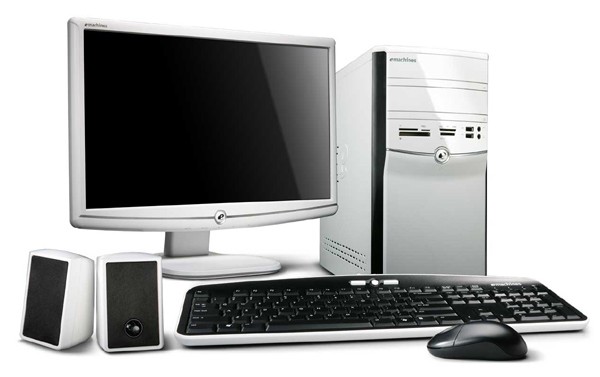
The CPU is the most important part of a computer. In it there is a lot of hardware to connect and work processes input devices and send the results to the Output Device. CPU Unit consists of: main board, processor, RAM / Memory, Power Supply, Input / Output Controller, Display Controller, Multimedia Controller, Network Controller.
- Main board
Main board serves to put the whole device controllers. Including Processor, RAM, Power Supply, I / O Controller, Display Controller and all the equipment is placed in the socket provided by the main board. Manufacturer Main board: Asus P5Series, AMPTRON, Compaq, Chip PC, Gigabyte, ECS, Dell, IBM
- Processor
Processor is the brain of the computer, such as the human brain in all commands and command results in the process by the Processor. The processor is a chip that is often called "Microprocessor" which is now the size has reached Gigahertz (GHz). The measure is a matter of the speed of the processor to process data or information. Part of Processors the most important part of the processor that is divided into three: Arithmetic’s Logical Unit (ALU) Control Unit (CU) Memory Unit (MU) The more velocity and higher processor technology, the better the performance of the computer.
Interface = Socket 370 (P-3), Socket 478 (P-4), Socket A / B (AMD), PGA 778 (Dual Core and up) For example, Intel P1, P2, P3, P4, Dual Core, AMD Duron, Athlon, etc.
Manufacturers processors are widely circulated in the market are AMD, Apple, VIA Cyrix, IBM, IDT, and Intel.
- RAM / Memory
Random Access Memory file storage program executed by the computer functions. The greater the capacity, the more closely the process as well. My experience with the system Windows XP CPU will be very responsive to 2:00 GHz with 512MB RAM.
Type / Interface = EDO (oldest), SDRAM, DDR1, DDR2, DDR3 (newest, fastest, cheapest)
- Power Supply
Power Supply serves as the resources used to use all the tools available on the computer. Recommendations When Power Supply for your computer is one that has great power, better computer power advantages.
Pin Type: 12 Pin Interface (old type), 20 Pin ATX, ATX 20 Pin + 4 Pin, ATX 24 Pin + 4 Pin (Latest)
- I / O Controller
Interface = ISA, PCI
- IDE controller and SCSI Controller
Interface = ISA, PCI
- Display Controller
Display Controller to produce a display to a monitor or TV. There are two types of the first on board, both are often called VGA Card. VGA has its own RAM larger capacity, greater RAM then the display on the monitor will be more subtle. VGA Card also serves to reduce load performance RAM / Memory on the use of certain 3D games, 3D video, and programs that require high-resolution graphics.
Example RAM VGA: 16, 32, 64, 128, 224, 256, 512, 1G.
Interface = ISA (Old Type), PCI (Old Type), AGP, PCI-Express (New)
Manufacturer VGA: Nvidia, S3 Trio, SIS, ATI Rage Series, etc.
- Multimedia Controller
Multimedia Controller for producing sound often called a Sound Card (Sound). Sound Card Technology Today technology developed to support 3D Surround 5.1 (mean 5 speakers with 1 Central as Base 6 Channel).
Manufacturer: Realtek, CMedia, ESS, Creative Sound Blaster. Interface = ISA, PCI- Network Controller / Network Adapter / LAN Card
Network Controller / Network Adapter / LAN Card are used as a port that connects two or more computers. Usually used for Chat, File Transfer, Database Programs, internet access (if using a modem), Multi Player Games, etc.
Interface = ISA, PCIINPUT DEVICE
Device used to enter commands.
- Keyboard
Port Interface = Serial / PS2 / USB
- Mouse
Port Interface = Serial / PS2 / USB
- Scanner
Port Interface = LPT / USB
- Joystick
Port Interface = LPT / USB
Output Devices
That tool works issued the results of a command input device.
- Monitor
- Printer
As a means of printed documents. 1. Laser printers, this printer to print quality documents the approach documents have been processed in a computer. 2. Ink-jet printers, laser printers compared to New Media, the initial cost of the printer type more efficiently. 3. Dot matrix printer, this being the most preferred type ON PC era. In this type of printer, the image produced by a collection of the check point spread short distances so it looks uneven. 4. Plotter, printers use a pen set to make World Prints related engineering or architecture.
Manufacturer : Canon, Epson, HP, Lexmark, Apollo, etc. Port Interface = LPT, USB- Speaker
Storage Device
That the tool serves as a place to store data in a file.
- Fixed Hard disk / Hard Disk
1KB = 1024 B
1MB = 1024 KB
1GB = 1024 MB
For example, file documents / letters usually only takes 200kb, 4MB MP3, Video CD 50MB / song, 700MB / CD full.
Interface = IDE, SCSI, SATA Manufacturer: Samsung, Maxtor, Seagate
- Floppy disk Drive
Floppy disk drive is the additional storage that can be moved - moved / not fixed, including the Removable disk. Since capacity is only 1.44 MB floppy disk now abandoned and turned to flash a current capacity up to 8GB, safer and maintenance free.
Interface = floppy interface
Manufacturer: Panasonic, Samsung
- CD / DVD Drive
Used as a media reader CD (Compact Disk / Disk tile) or a DVD. CD / DVDRW can be used to read the CD / DVD, and burn to CD / DVD. The storage capacity of a standard 700MB CD, DVD 1 Layer 4.48 GB, 8.15 GB DVD 2 Layer.
Interface = IDE, SCSI, SATA
Manufacturer: Samsung, Liteon, LG, Pioneer
- Flash Disk
Flash Disk is also included in the Storage Device, floppy disk the same function, but has a large capacity and maintenance free. My experience using a floppy disk is very uncomfortable and unsafe, because it must be protected from dust, sunlight, water, magnets, etc. A common mistake because unreadable. Flash disk capacity from 512, 1GB, 2GB, 4GB, 8GB and growing.
Interface: USB
- Bluetooth Adapter
Interface: USB
- TV Tuner
This tool serves to convert the RF signal (TV signals) into digital signals. With this tool for watching TV on the computer is not a problem. Usually equipped with a radio.
Interface: PCI / USB
- External Hard Drive
Function and capacity similar to a fixed disk / hard drive. The difference this device can be taken anywhere, because it includes the Removable Disk.
Interface: USB
SOFTWARESoftware is a program, device drivers, and files on the computer. Namely;
- Operating System (OS)
The operating system is the software that controls the performance of the main system. In determining the OS to consider the compatibility (support for programs to third parties, as well as support for hardware), stability (Often Mistake or not), and Price Range (OS Windows XP Home Edition for dollar cost nearly 800ribu, Linux offers a free OS such as Ubuntu).
Example OS, DOS 6.22, Windows 3.11, Windows 95, 97, 98, 2000 Server, XP, 2003, Vista, Linux Mandrage, Linux Ubuntu, Suse Linux, etc.
- Program Application
The application program is a supplemental program to support the performance of the computer. (Price Software Microsoft Office Word, Excel Access to 1.7 million). Example Applications, Office (Word, Excel, etc.), Winamp, Power DVD, Pascal, Application Games, etc.
- Device Driver
All the hardware described above will not work without a Device Driver is installed in the Operating System. For example, the printer cannot print without a Device Driver. For Exsample : Suppose we want to install a TV tuner card installed in the PCI slot. Once the computer is turned on it will be confirmation that the new hardware found and then the computer asks Device Drivers for new hardware. This could mean that the computer wants to know what the name, the function and workings of the new hardware and ask identifier wheel / in the form of software (usually included in the package tool). After we gave the driver files in the form of software, the computer will know that the name of this tool is the TV Tuner, Brand A, mounted on a PCI-X slot, and so on. However, the operating system has been equipped with many hardware-hardware drivers that are often used in PCs. If we put a new tool to the computer then the tool is ready for use, it is called Tool Compatible. Stay updated drivers so we can work optimally. For example, flash, LX-300 Printer, Monitor.